+86 15093323284 hams@ailunce.com




How to make a Global QSO on the air without a Hotspot
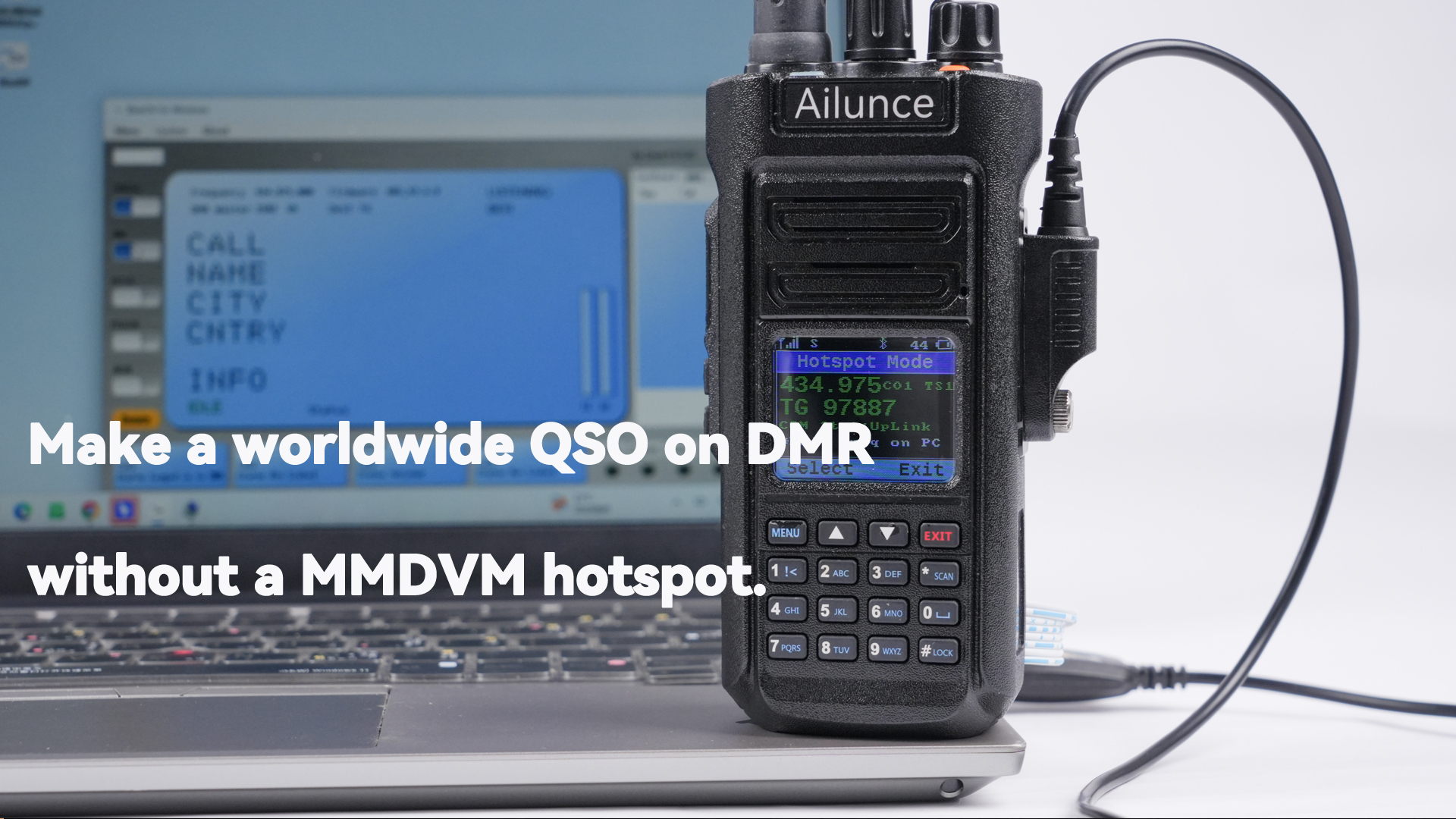
Ailunce HD2 V3 version: Create a firmware with built-in MMDVM serial commands, allowing easy access to DMR Global TG through a Windows PC using the third-party application BlueDV Windows developed by Mr. David Grootendorst (PA7LIM), connected via USB, without the need for a hotspot.
1. Update the Ailunce HD2 V3 version to V3.1.9, following the Firmware update guide.
2. Menu 12 DV QSO: Hotspot Mode, Terminal Mode. The DV QSO mode only works on the digital channel. The current working channel should be a digital channel.
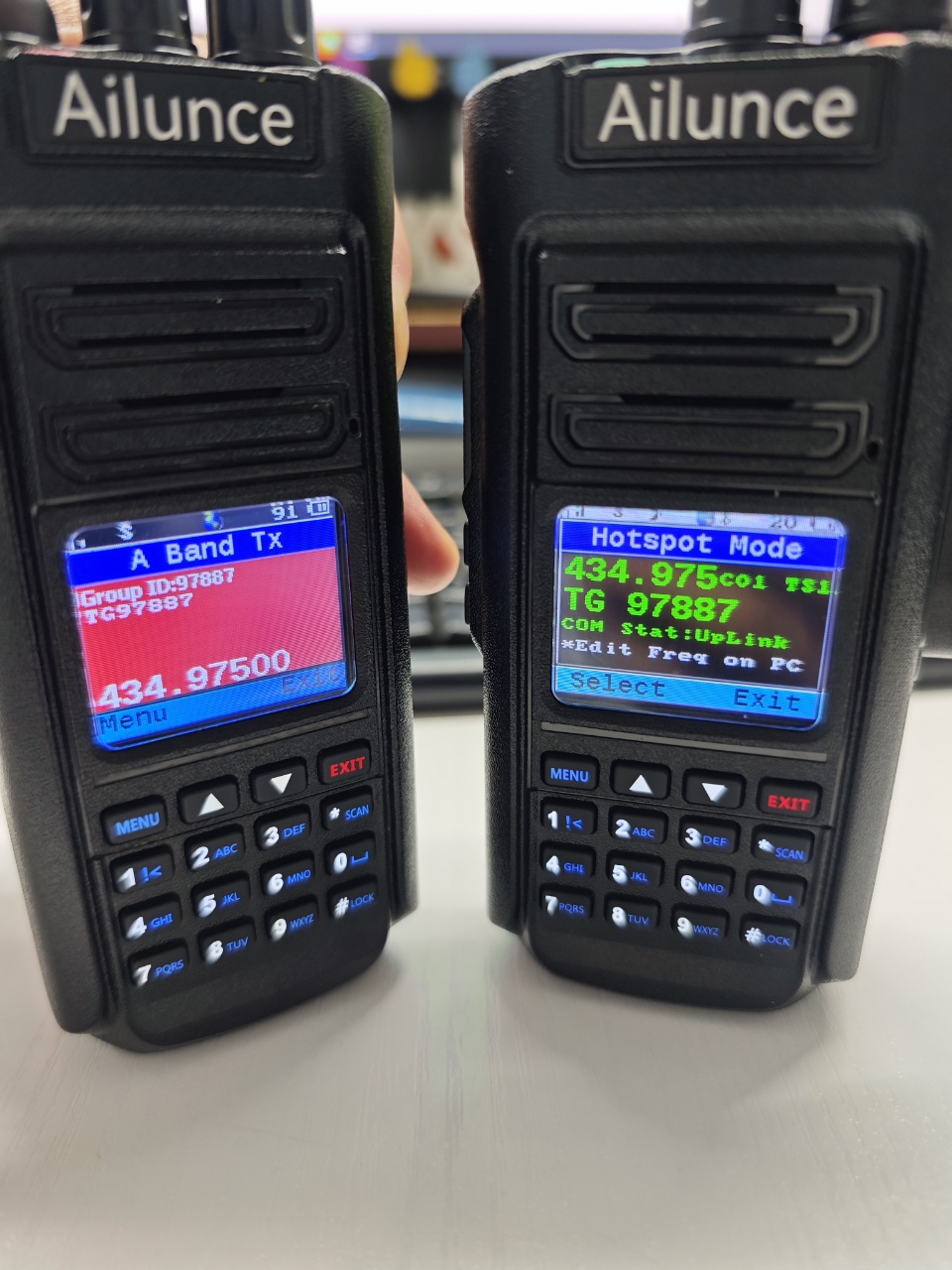
Hotspot mode means the radio works as an external MMDVM hotspot device.
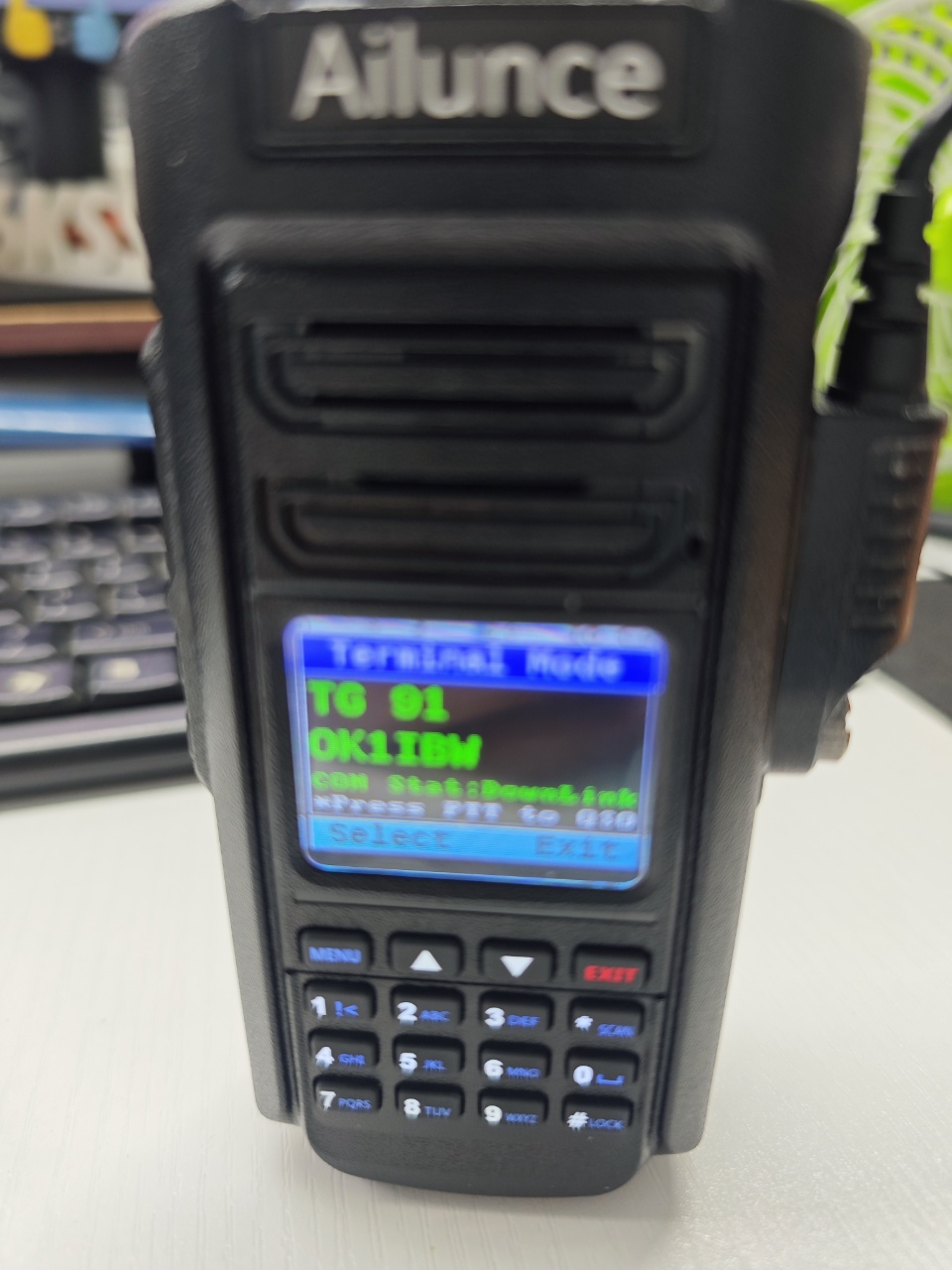
Terminal mode means the radio directly acts as a terminal device connected to your PC. You can access the DMR Global TG service directly without an additional hotspot device.
【Ailunce HD2 and PC Connection】
To connect the radio to a PC via the programming USB cable , you must first install the COM port driver on the PC.
Download the USB Driver.
【BlueDV for Windows Settings】
1. Download the BlueDV Windows.
Locate the ZIP file (if there are multiple, select the latest one by date), then download the file. Extract the downloaded ZIP file, and double-click the file inside the extracted folder to run the installer.
2. Double-click the “BlueDV” icon on the desktop to launch the program.
3. In “Menu” → “Setup,” the following settings window opens.
* The Master password is same with the hotspot security password which set under your Brandmeister account.
【Settings on the radio】
1. Short press EXIT to switch to VFO, and create a frequency that matches the BlueDV frequency.
2. In the 6th menu, create new contacts by entering the contact name and ID, and select the group or private type. Turn the channel knob to move to the next contacts.
3. Set your own Radio ID in the 8th menu.
4. Create a digital channel: in Menu > Band A/B, set color code in the 19th menu, set DMR Mode to Simplex in the 22nd menu, and select a contact(Group contact or private contact) from the list in the 28th menu.
5. Go back to DV QSO and select one of the working modes you want to use.
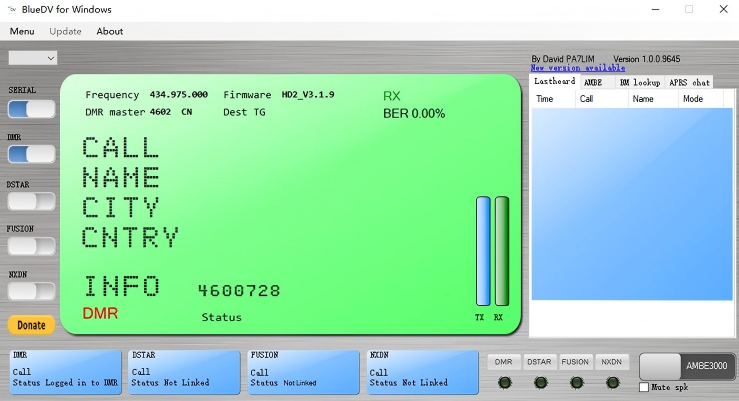
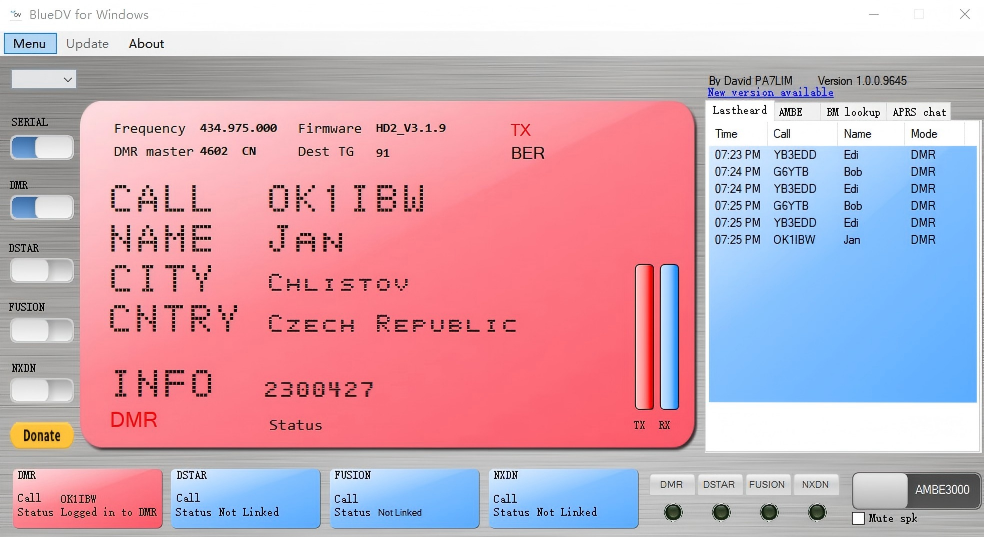
6. Go back to the BlueDV window and enable Serial. The radio frequency and firmware version will be displayed at the same time. Then enable DMR; the message “status logged in to DMR” means all the settings are correct and you are ready to wait for QSO on the air.
HotSpot Mode :
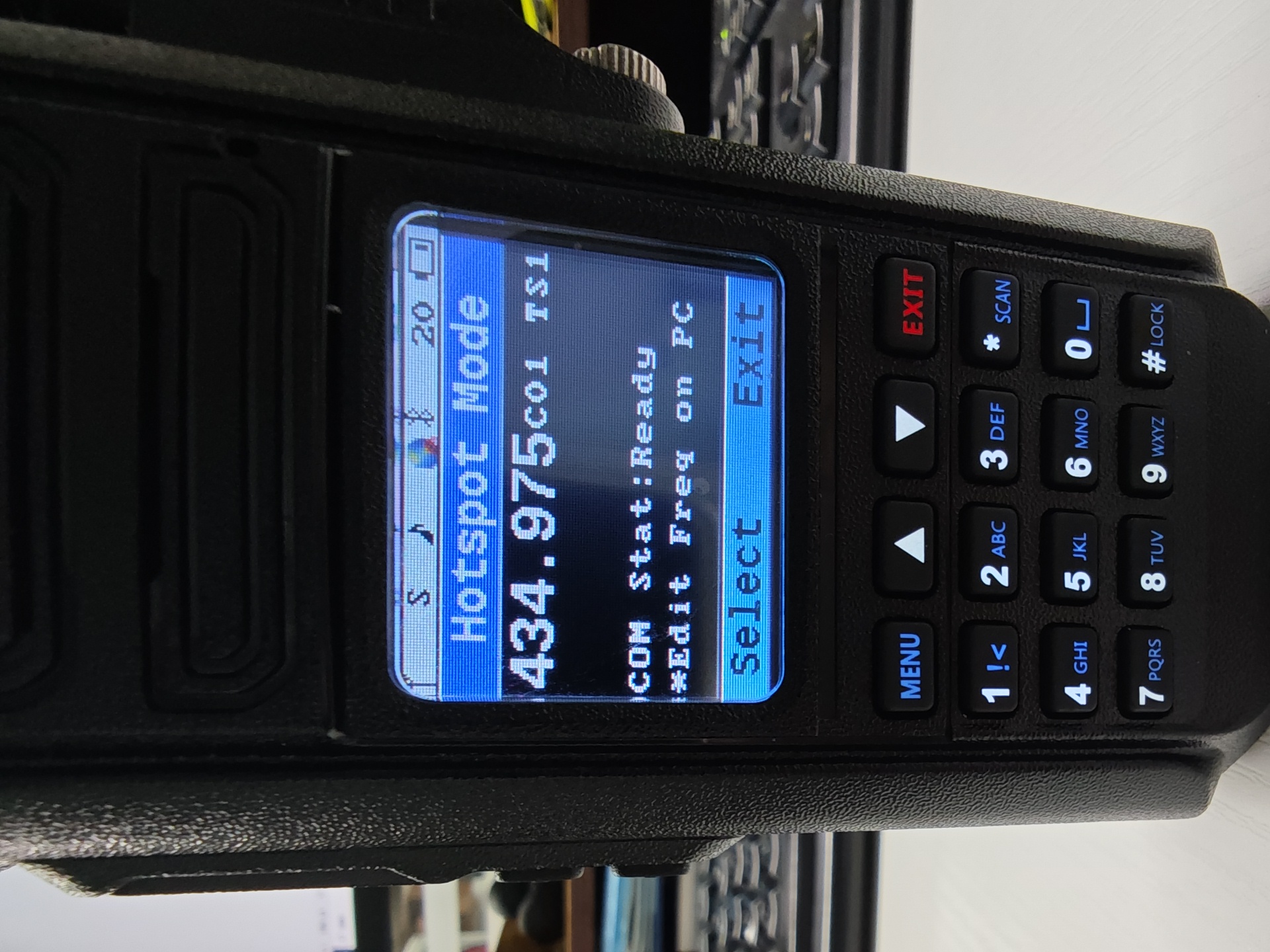
Radio TX Status
BlueDV RX Status
Terminal Mode
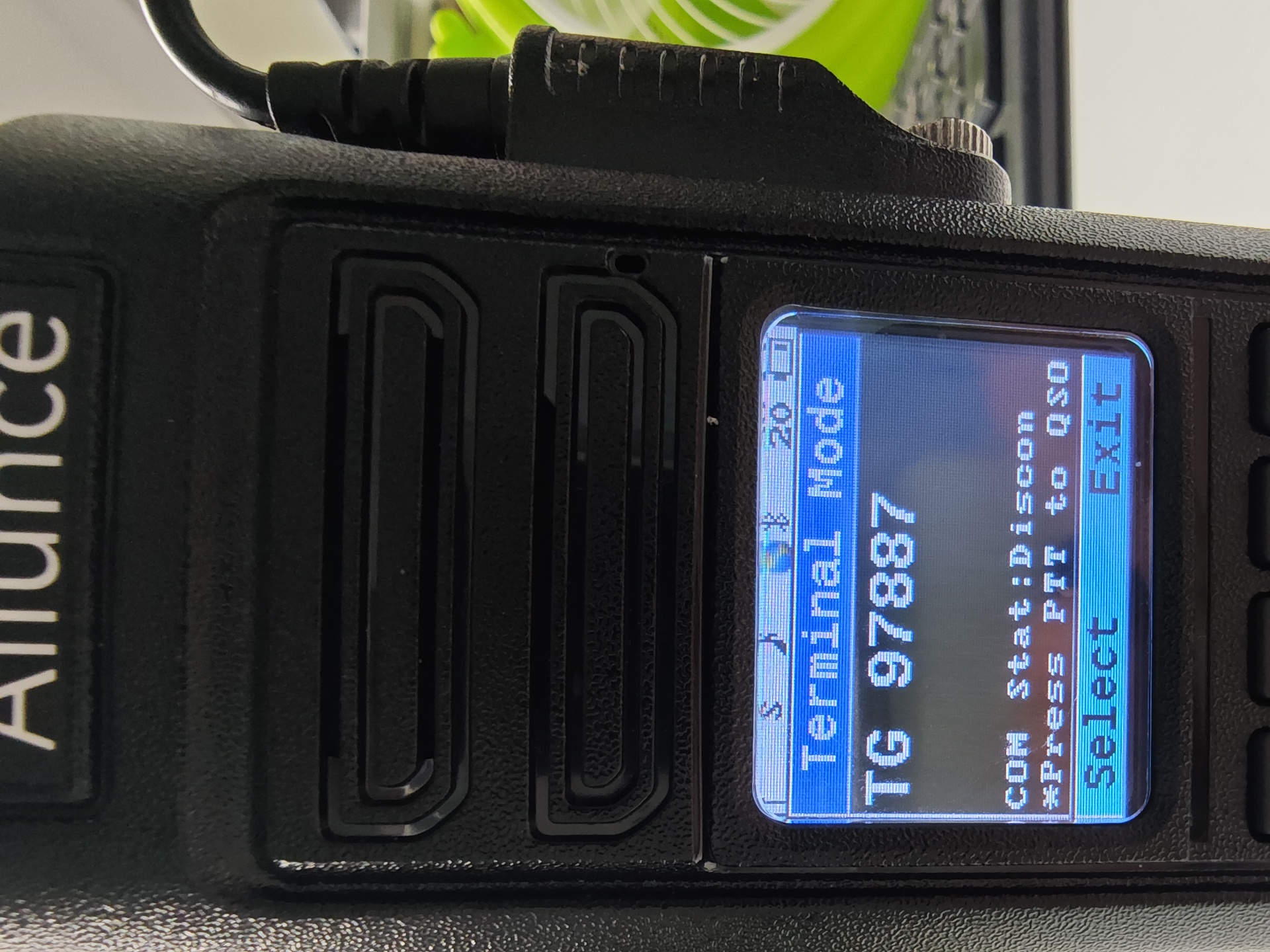
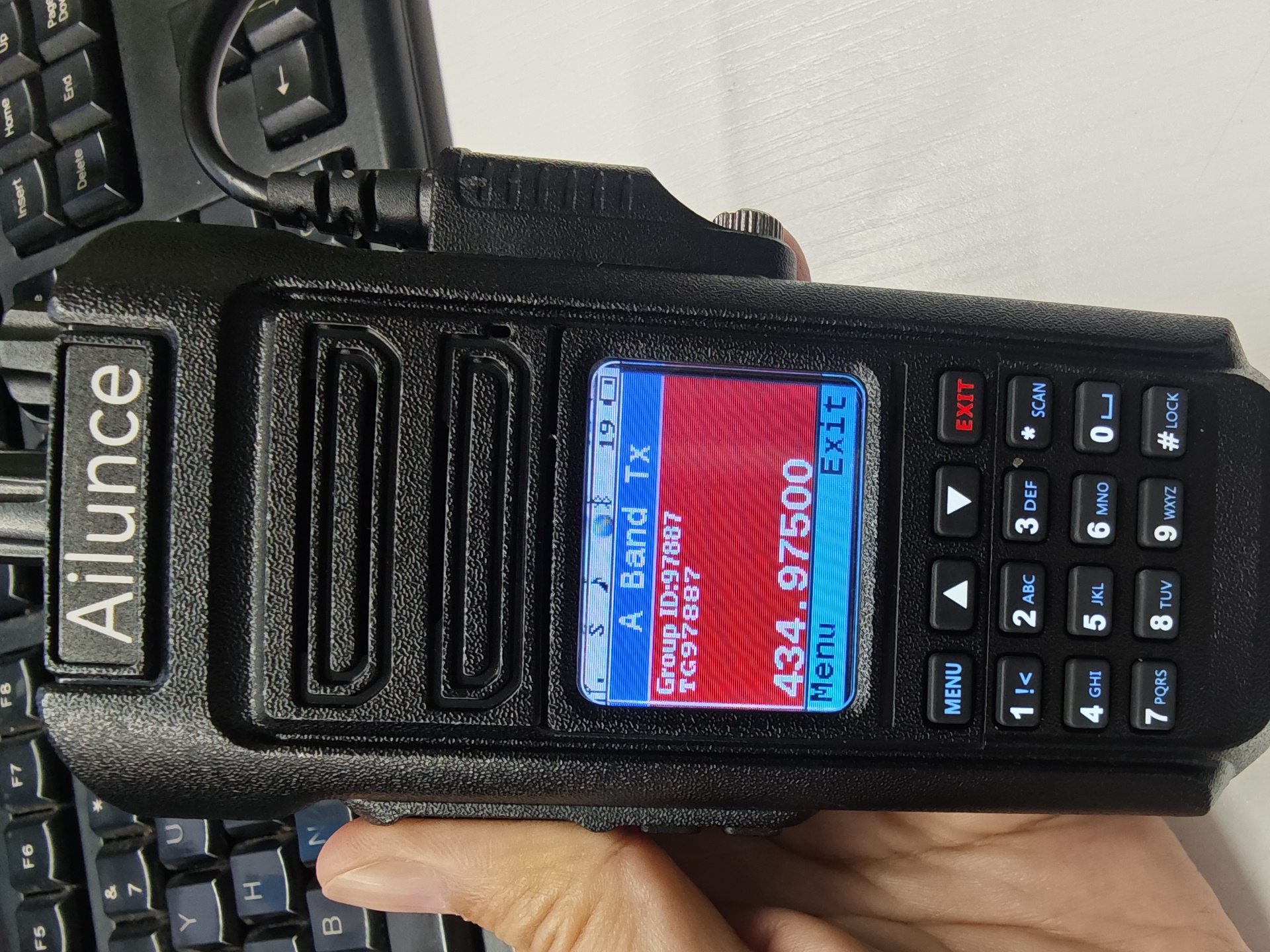
Under this mode, the radio can directly work like a hotspot; simply press PTT to QSO. Group call or private call both works on this mode. Keep on this mode, otherwise this function is invalid.
Radio TX Status
BlueDV TX Status
Radio RX Status