+86 15093323284 hams@ailunce.com




How to Connect Ailunce HA2 to APRSDroid for APRS Messaging
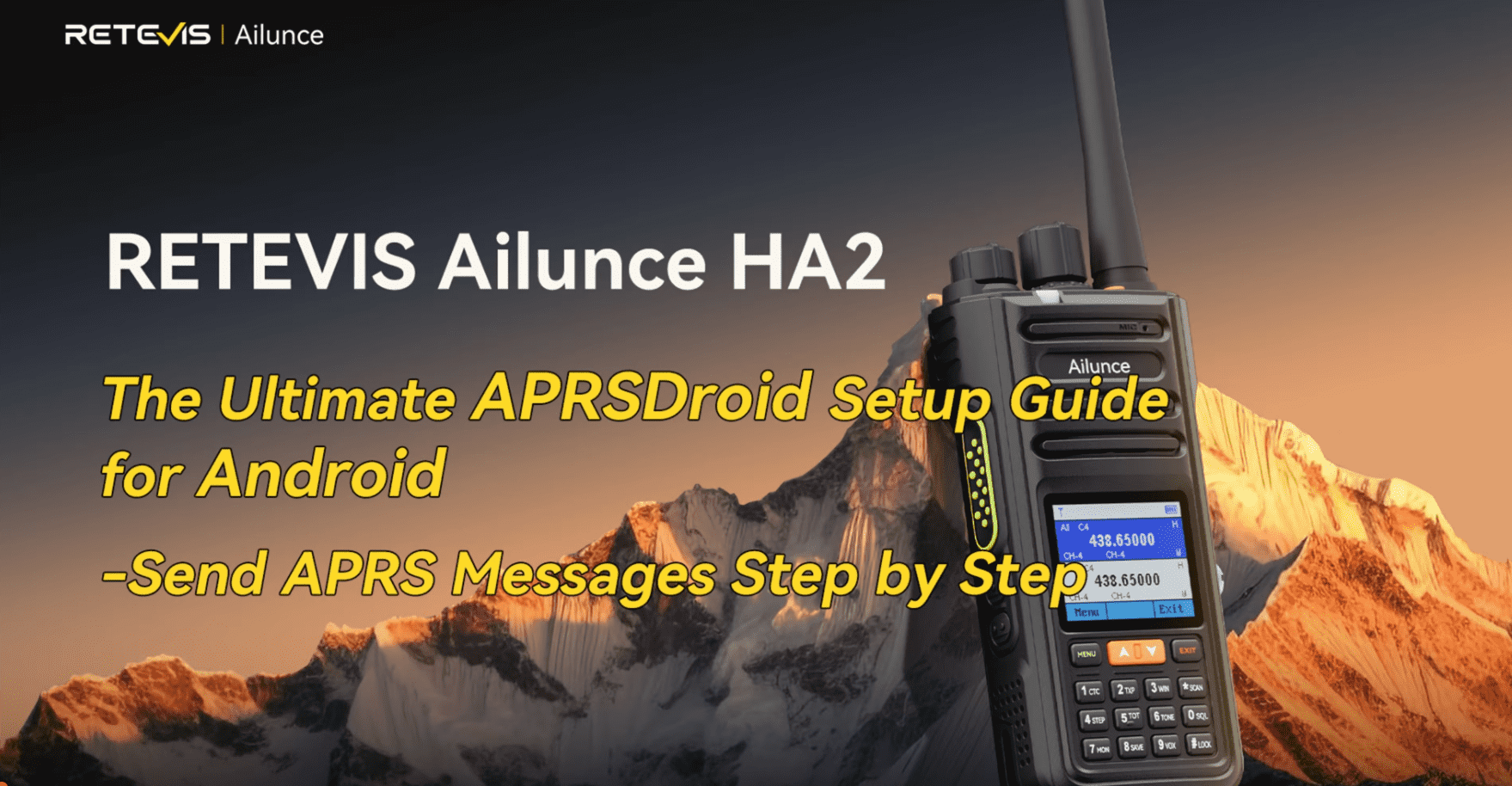
APRS messaging allows you to send short text messages through your radio network. With the Ailunce HA2 and APRSDroid, you can use your Android phone to compose and send APRS messages through the radio via Bluetooth.
If you are new to APRS, don't worry. This guide will walk you through the entire setup, from preparing your radio and configuring APRSDroid to sending and replying to an APRS message.
Learn about this feature via the tutorial video.
What You Need
Before getting started, prepare:
● An Ailunce HA2 radio
● An Android phone with APRSDroid installed
● Bluetooth enabled on both the radio and phone
● The latest radio firmware and Bluetooth firmware. (This feature is available starting from firmware V1.00.06.004 and will be continuously updated.)
Make sure both the radio firmware and Bluetooth firmware are updated to the latest versions before setting up the APRS function. You can download the latest firmware files from the Ailunce website.
Step 1: Prepare the Ailunce HA2
First, configure the radio so that it can communicate with APRSDroid.
1. Turn on Bluetooth
On the HA2, go to:
Menu → BT Power → On
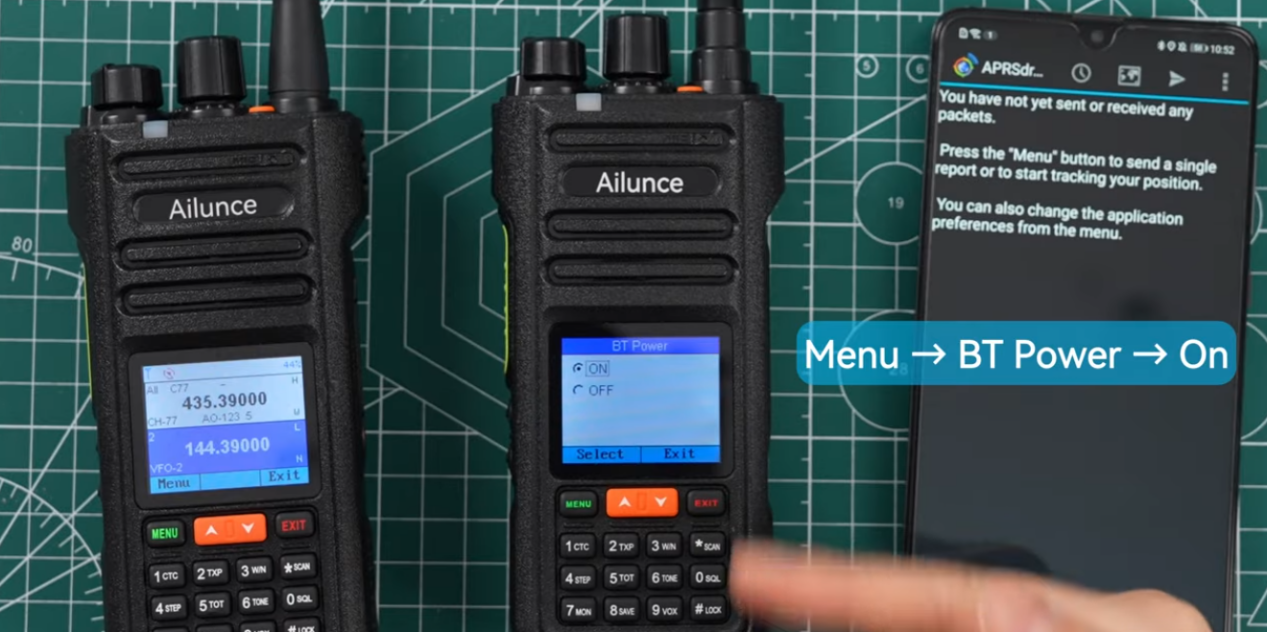
Then check the top-right corner of the radio display. When the Bluetooth/phone icon turns blue, the Bluetooth connection has been established.
2. Set Bluetooth Mode to KISS TNC SPP
Next, go to:
Menu → Bluetooth Mode → KISS TNC SPP
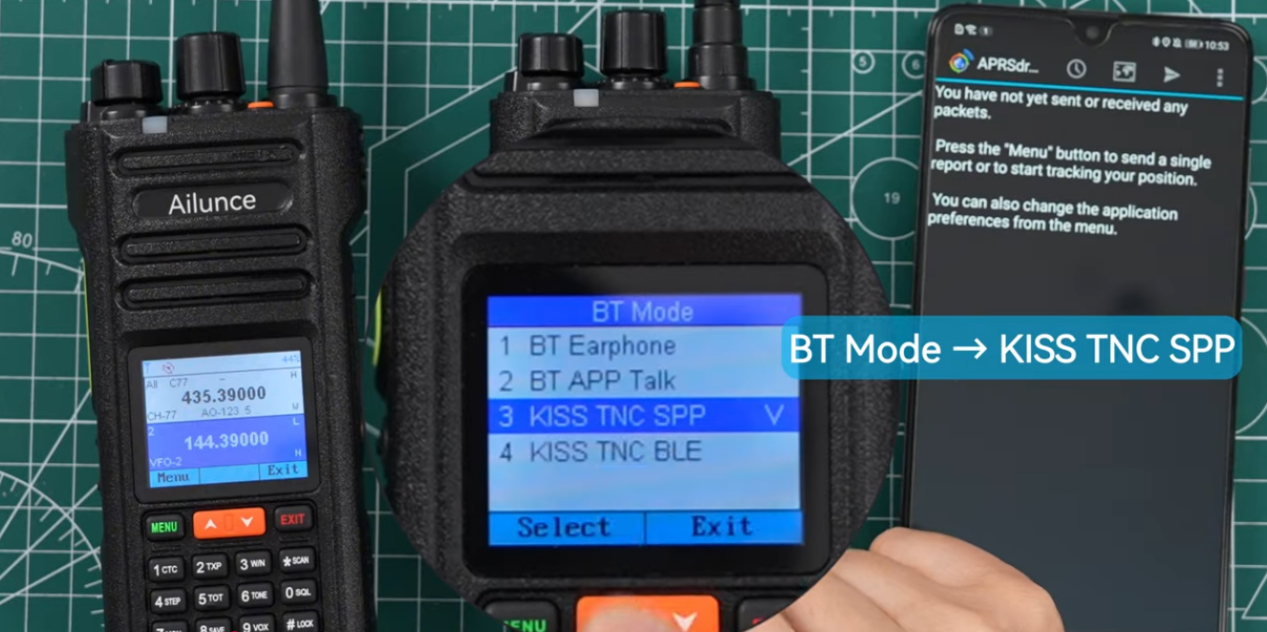
This setting allows APRSDroid to communicate with the radio through the KISS TNC interface over Bluetooth.
3. Enable APRS
Go to:
Menu → APRS → APRS Switch → On
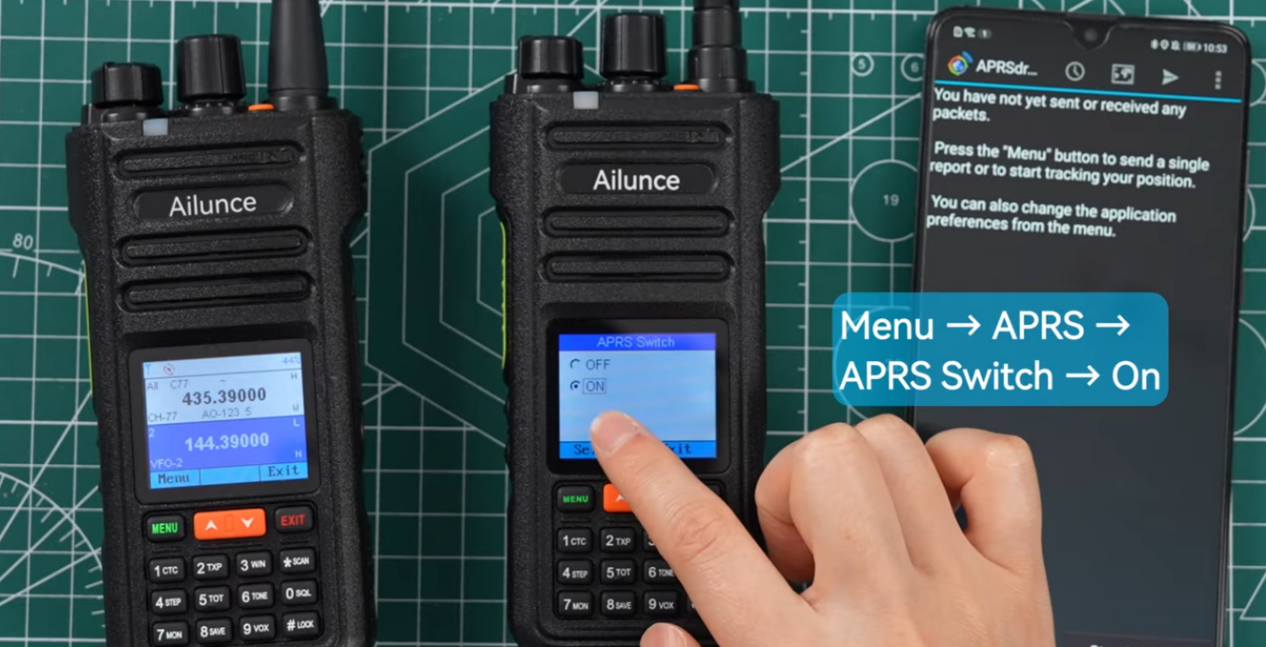
Then open:
Menu → APRS Setting → My Callsign
Enter your callsign and SSID.
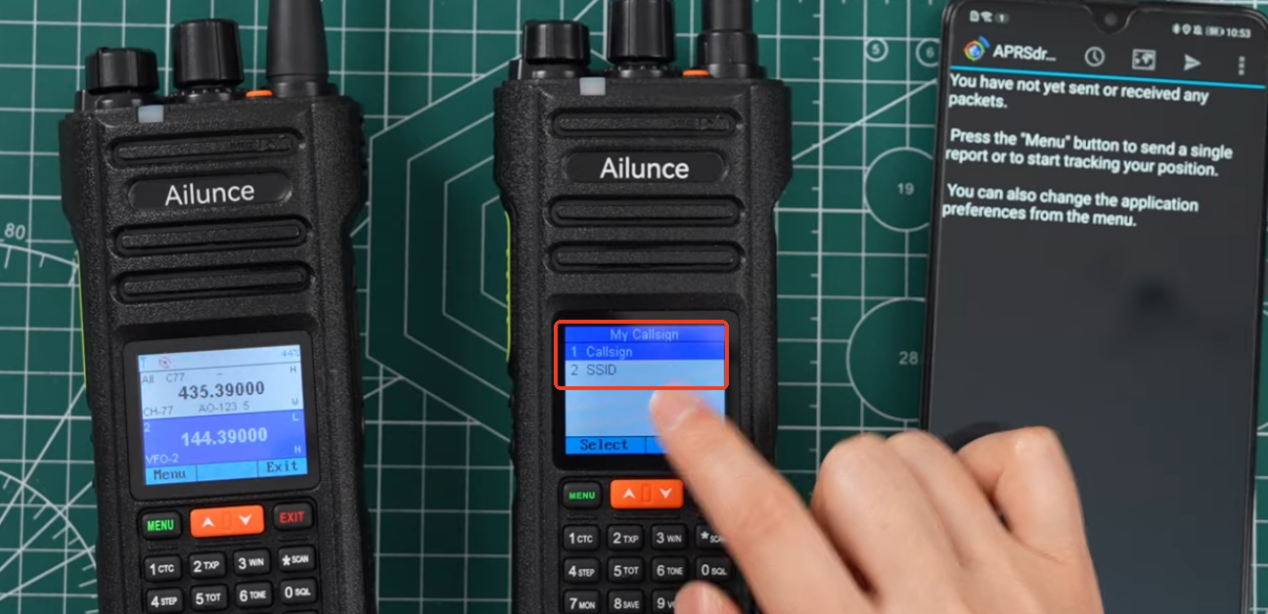
Make sure the information is entered correctly, as your callsign identifies your station when sending APRS messages.
4. Check the Transmit Frequency
Go to the transmit frequency setting and make sure the radio is using the frequency assigned to the APRS channel you plan to use.
Once these settings are complete, the HA2 is ready to connect with APRSDroid.
Step 2: Configure APRSDroid
Now move to your Android phone and open the APRSDroid app.
1. Select TNC (KISS)
Open the APRSDroid menu and go to:
Preferences → Connection Preferences → Connection Protocol
Select:
TNC (KISS)
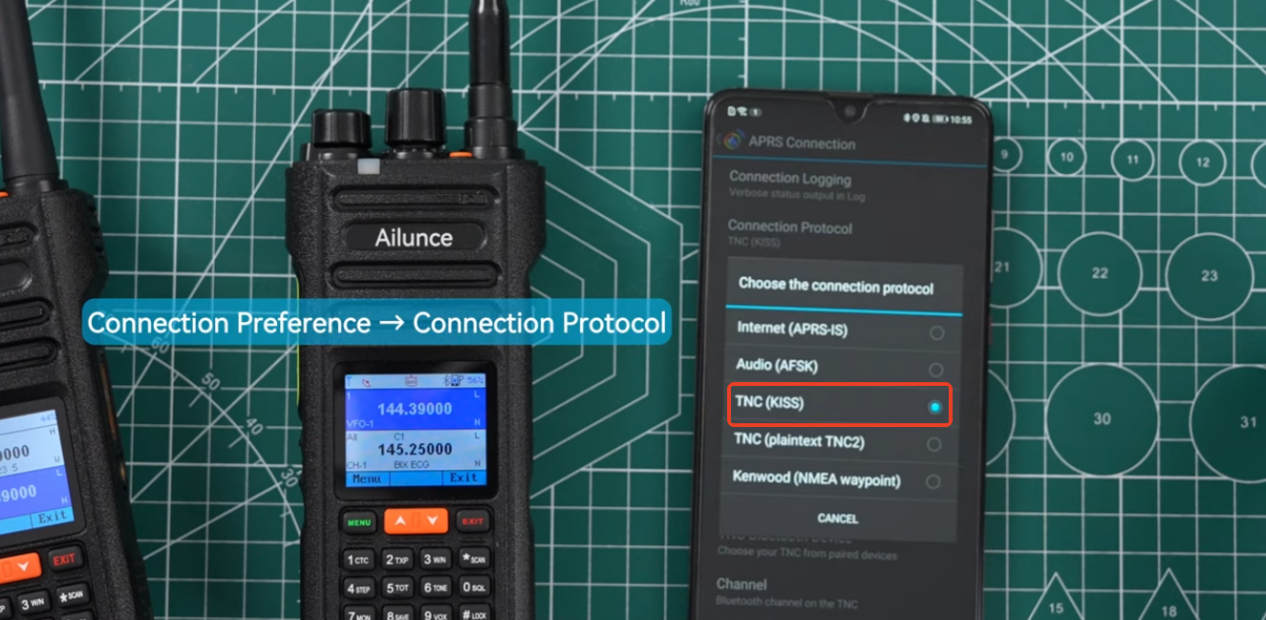
This tells APRSDroid to communicate with the radio through a KISS TNC connection.
2. Select Bluetooth SPP
Next, go to the connection type and select:
Bluetooth SPP
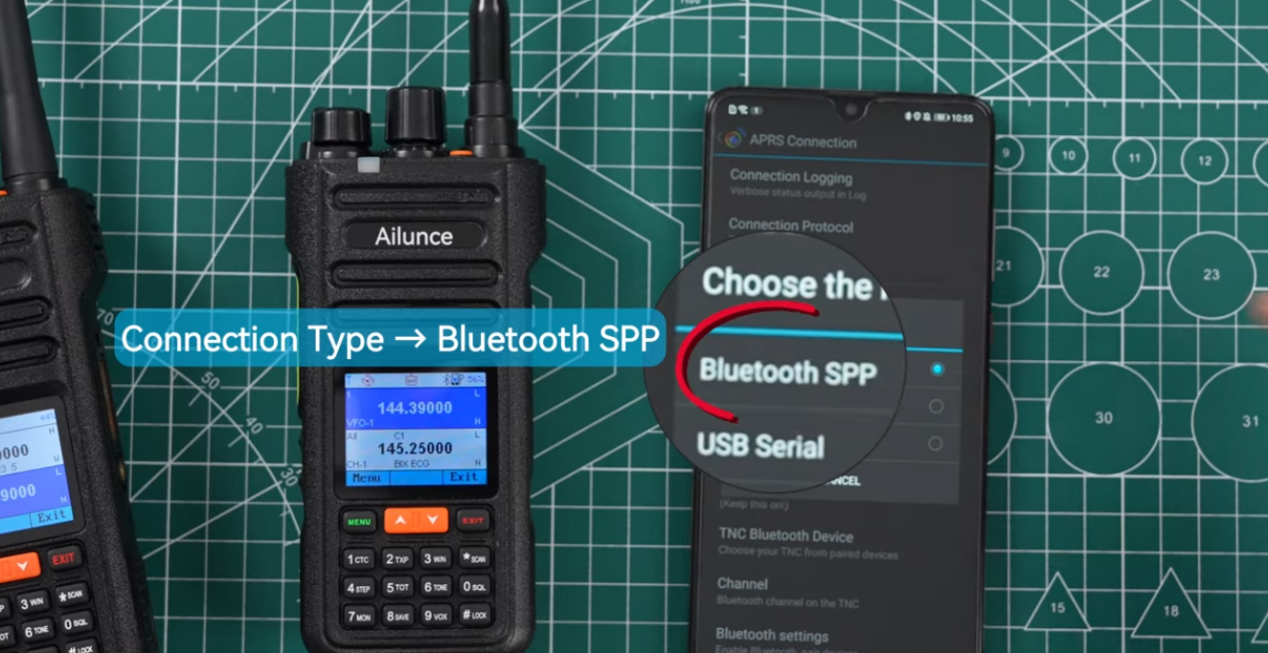
This allows APRSDroid to use the phone's Bluetooth connection to communicate with the HA2.
3. Select the HA2 Bluetooth Device
Under TNC Bluetooth Device, select:
Ailunce HA2
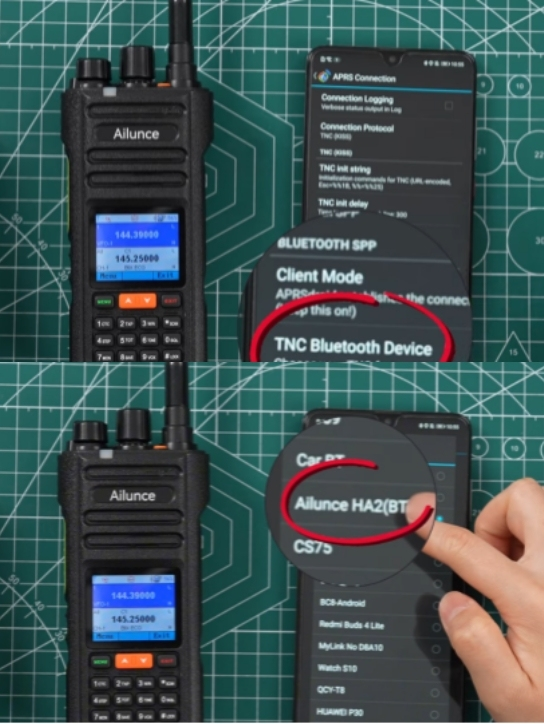
Then open your phone's Bluetooth settings and make sure the HA2 is connected successfully.
Step 3: Connect APRSDroid to the HA2
After configuring the connection settings, return to the APRSDroid main screen.
Tap Start Tracking.
Once tracking starts, check the connection status. If APRSDroid shows:
Bluetooth OK
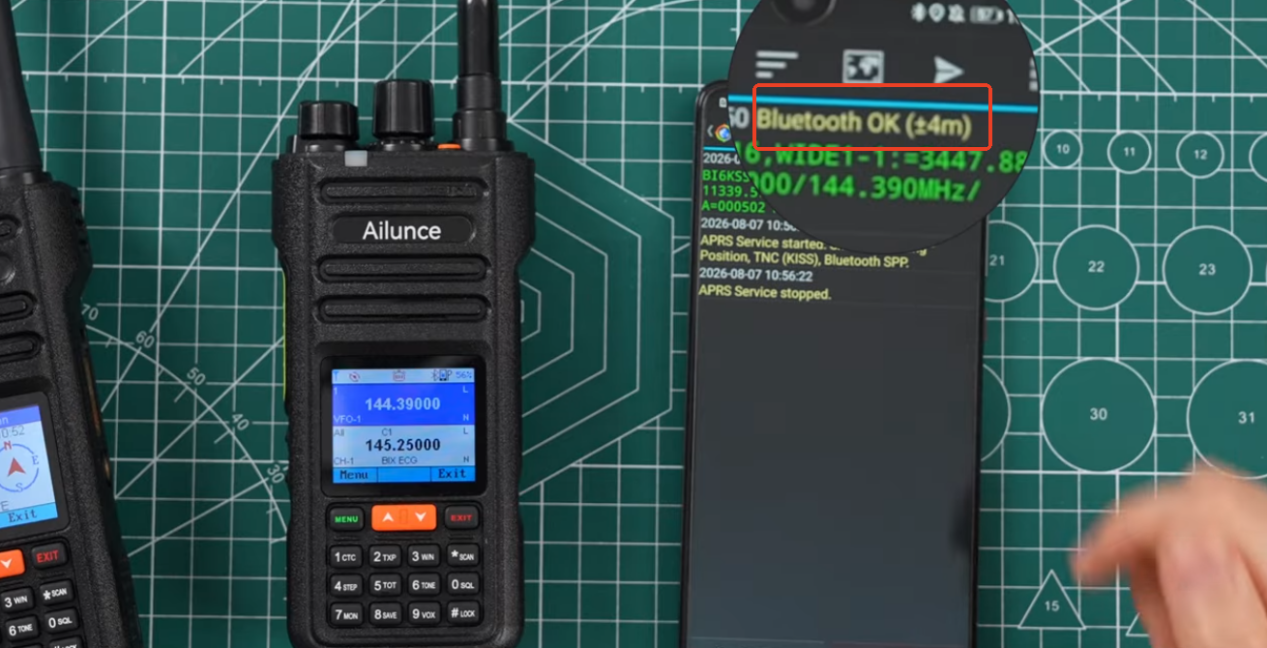
the app is successfully communicating with the HA2 through Bluetooth.
At this point, the radio and APRSDroid are ready for APRS messaging.
Step 4: Send an APRS Message
Now let's send an APRS message.
On the APRSDroid main screen, tap the message icon in the top-right corner to open the messaging interface.
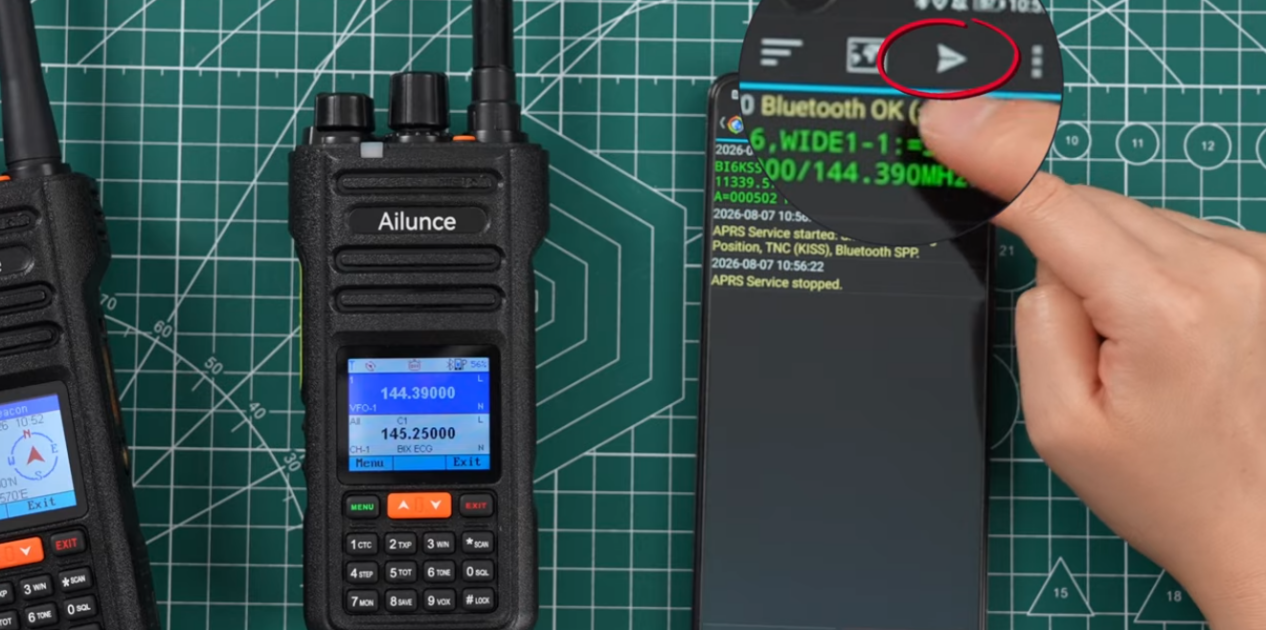
Select Send Message, then enter:
1. The recipient's callsign and SSID
2. Your message
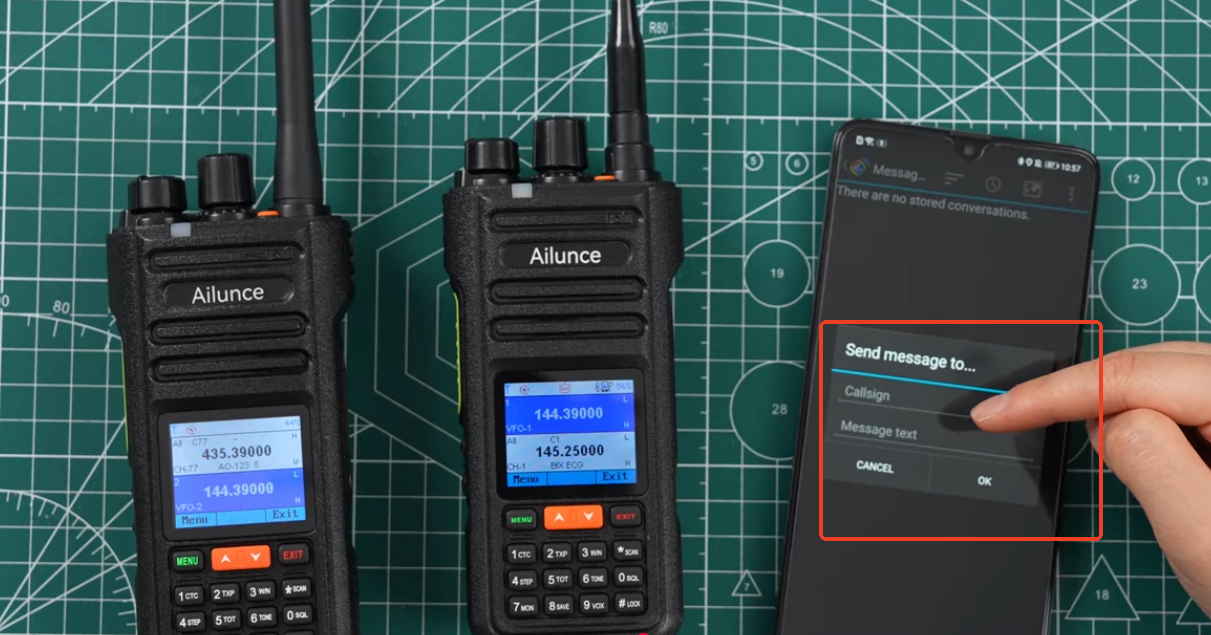
For example, you can enter a test message such as:
Test1
After entering the recipient and message, tap OK.
The message will be sent from APRSDroid to the HA2 through Bluetooth, and the radio will transmit it through the APRS network.
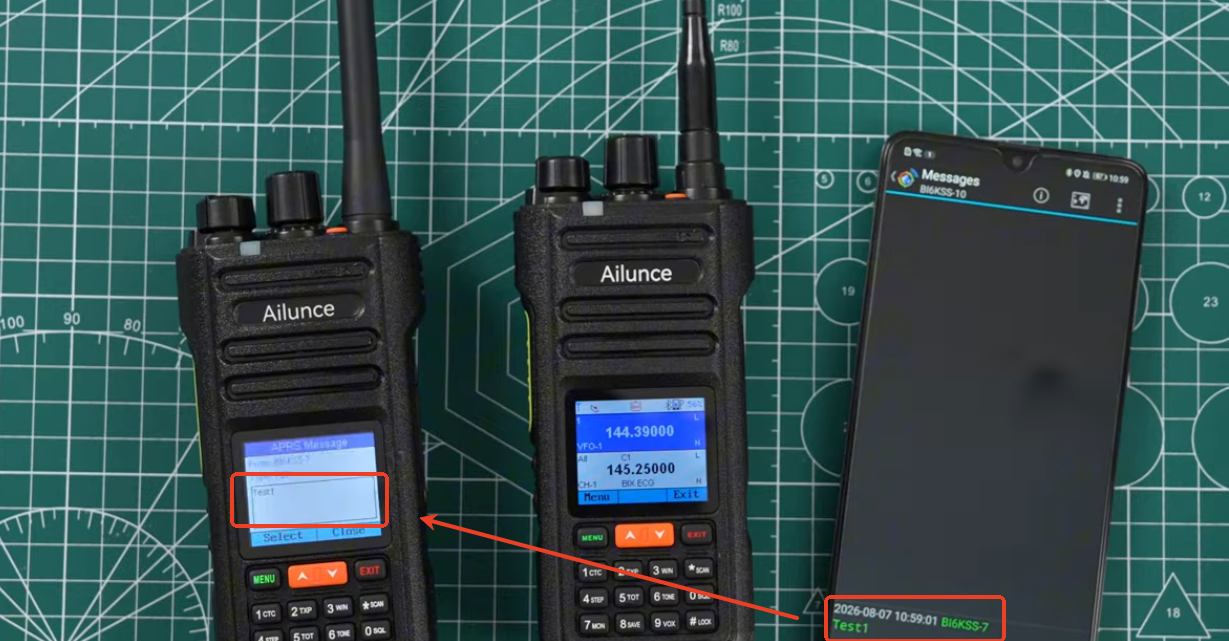
You can repeat the process to send another message, such as Test2.
Step 5: Receive and Reply to an APRS Message
You can also receive APRS messages and reply directly from the radio.
On the receiving radio, go to:
Menu → APRS → APRS Message → Received
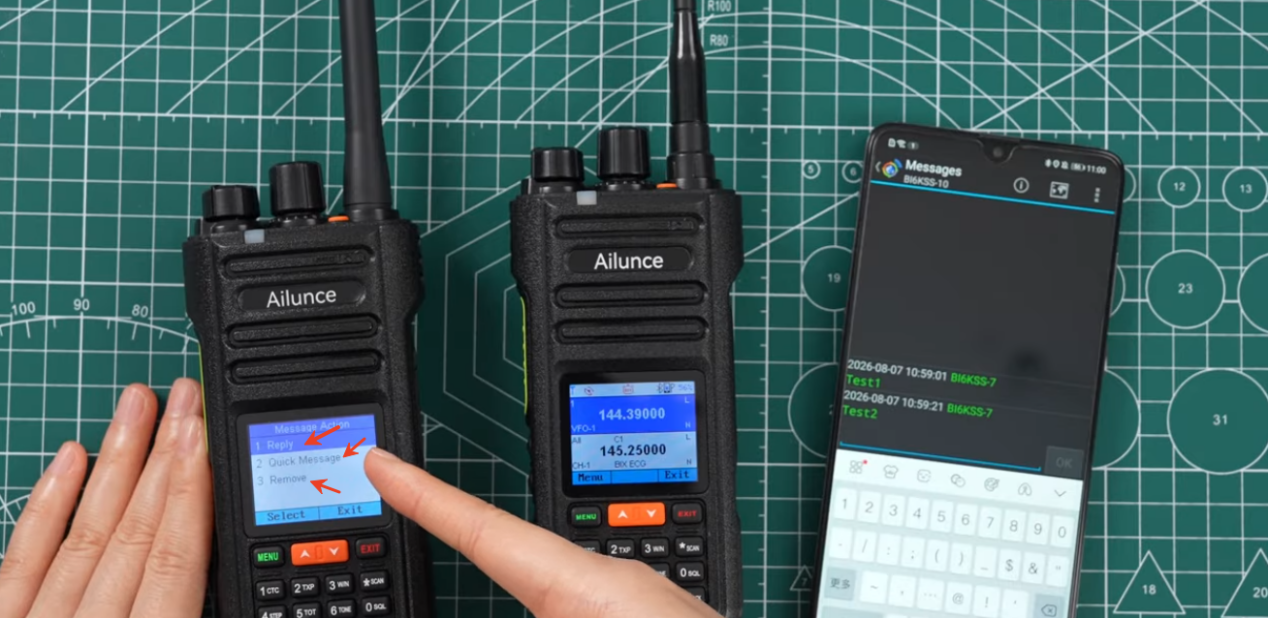
Select the received message to view the available options.
Depending on the radio settings, you can choose options such as:
● Reply – manually enter a response.
● Quick Message – select a predefined message for a faster reply.
● Remove – remove the message.
For example, you can select a preset response such as:
OK, received.
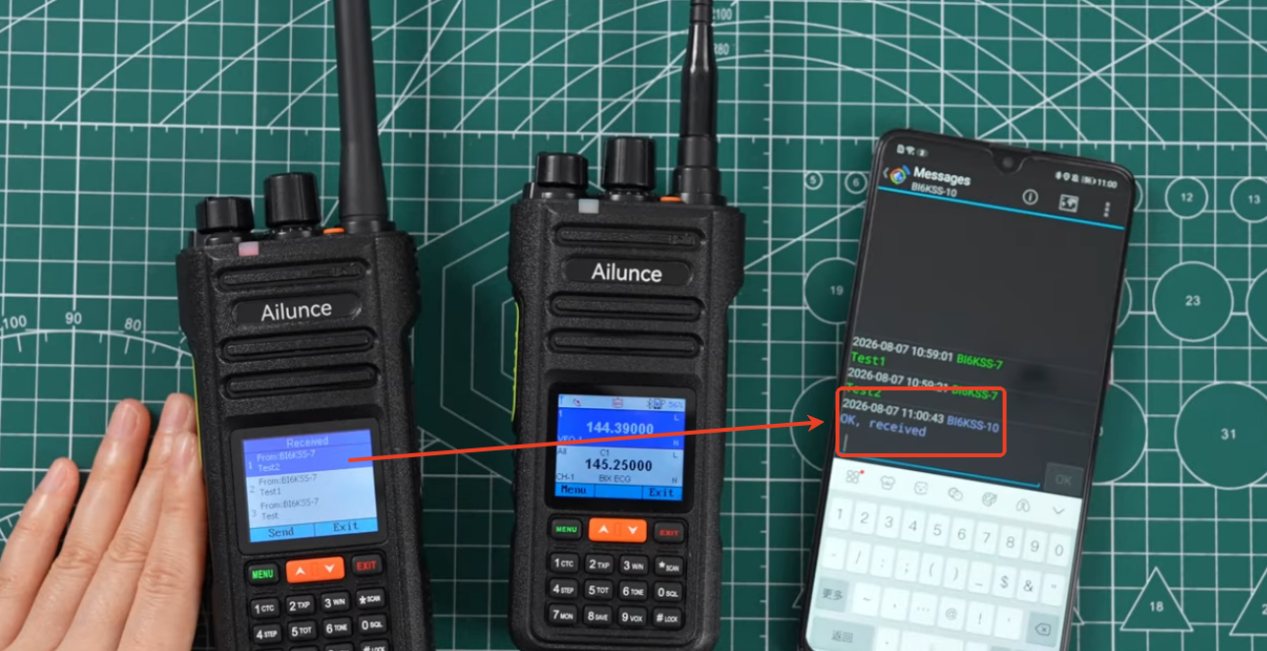
This makes it easier to respond to frequently used messages without typing the same response each time.
Important Tip for APRS Messaging
KISS TNC SPP Limits Other Bluetooth Functions
When the HA2 Bluetooth mode is set to KISS TNC SPP, some other Bluetooth functions will not be available.
In this mode:
● Bluetooth audio is unavailable.
● Bluetooth PTT is unavailable.
● Bluetooth programming is unavailable.
This is expected behavior because the Bluetooth connection is being used for KISS TNC data communication with APRSDroid.
Quick Setup Checklist
Before sending your first APRS message, check the following:
|
HA2 |
APRSDroid |
|
Bluetooth: On |
Connection Protocol: TNC (KISS) |
|
Bluetooth Mode: KISS TNC SPP |
Connection Type: Bluetooth SPP |
|
APRS: On |
TNC Bluetooth Device: Ailunce HA2 |
|
Callsign & SSID: Configured |
Start Tracking: On |
|
APRS Frequency: Correct |
Status: Bluetooth OK |
Once all the settings are correct, APRSDroid can communicate with the Ailunce HA2 through Bluetooth, allowing you to send and receive APRS messages directly from your radio.
Conclusion
Connecting the Ailunce HA2 to APRSDroid only requires a few key settings. First configure the HA2 Bluetooth Mode for Bluetooth KISS TNC SPP, enable APRS, and enter your callsign. Then configure APRSDroid to use TNC (KISS) and Bluetooth SPP, select the HA2, and start tracking.
Once APRSDroid shows Bluetooth OK, you are ready to send APRS messages, receive messages from other stations, and reply using the radio.
With these settings in place, even beginners can get started with APRS messaging and use the HA2 as a convenient radio interface for APRSDroid.