

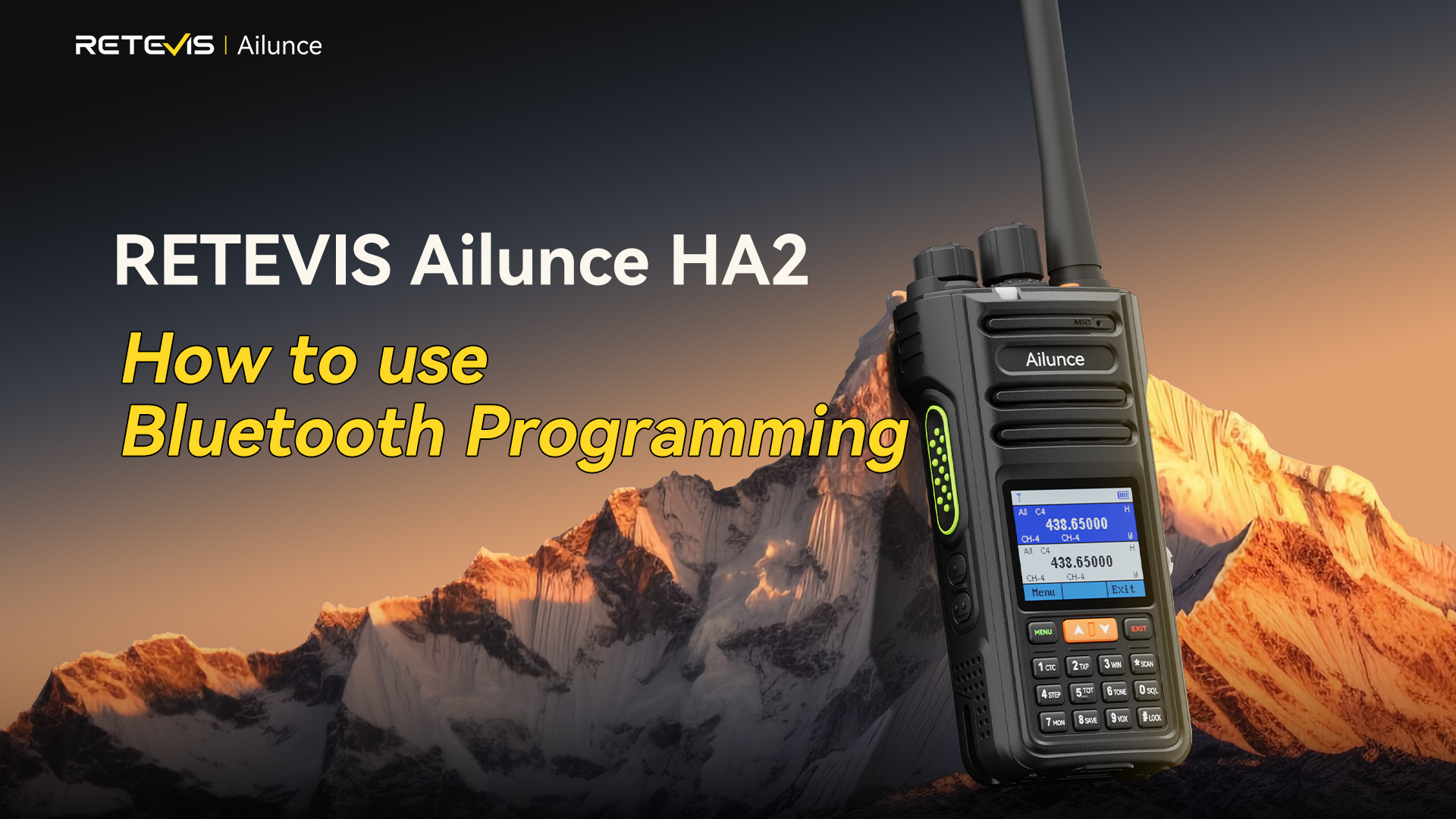
Hello, fellow Hams! If you’ve been using radios for a while, you know how tedious programming can be. You pull out the programming cable, fire up your laptop, and sometimes spend extra time hunting for the right drivers to get everything working. If you’re new to ham radios or just prefer simpler setups, this process might feel even more overwhelming—especially when you’re out in the field or just need a quick frequency update. There’s a better way, though. The RETEVIS Ailunce HA2 has built-in Bluetooth, and it makes this process a lot easier. You can do all your bluetooth programming right from your smartphone. No more fuss, just simple, straightforward setup. I’ll show you how easy it really is.
Traditional Programming vs. RETEVIS Ailunce HA2 Bluetooth Programming (The Real Deal)
|
What Matters to You |
Traditional Ham Radio Programming |
RETEVIS Ailunce HA2 Bluetooth Programming |
|
Gear You Need |
Laptop, programming cable, driver software (often finicky to install) |
Your smartphone + the official bluetooth programming app (no extra gear) |
|
How Easy It Is |
Takes time to set up; easy to mess up drivers or cable connections |
Straightforward bluetooth pair process, app is intuitive (no tech degree needed) |
|
Useful On-the-Go? |
No—you can’t carry a laptop everywhere, especially on hikes or field days |
Absolutely—you already have your phone, so you can program anywhere |
|
Chances of Errors |
High—driver glitches or loose cables often ruin the process |
Low—stable bluetooth connection, app walks you through each step |
|
Emergency Adjustments |
Impossible—you won’t have a laptop handy in a pinch |
Easy—pull out your phone, adjust frequencies, and get back on the air fast |
What Bluetooth Programming for the RETEVIS Ailunce HA2 Actually Looks Like
RETEVIS Ailunce HA2 has Bluetooth built in—no extra adapters needed. Bluetooth programming is easy: connect your phone using the official bluetooth programming app, check your radio’s settings, make changes, and save them back. It works just like a computer, but faster.
I’ve used it myself, and it cuts programming time by half—no more fumbling with cables or drivers. Perfect for anyone who wants to keep things simple, whether you’re a long-time ham or new to the HA2.
Step-by-Step: Programming Your RETEVIS Ailunce HA2 via Bluetooth
These are the exact steps I follow to program my own RETEVIS Ailunce HA2—no fluff, just what works. It matches the tutorial video, so you can follow along with the video or this guide, whichever is easier for you.
Step 1: Download the Official Bluetooth Programming App — RETEVIS APP
Two easy ways to get the app—pick whichever is quicker for you:
Here are the download links for Android and iOS—you can choose whichever works best for you.
Android:Download Link
iOS:Download Link
RETEVIS APP, our official bluetooth programming app, now supports multiple models, including EZTalk 5, Ailunce HA2, RA89G/R, RB58, and more.
We’ll keep updating it with new models over time.
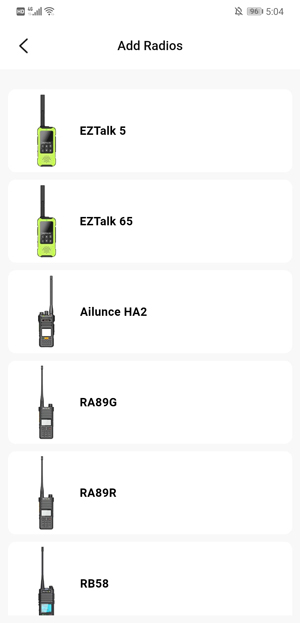
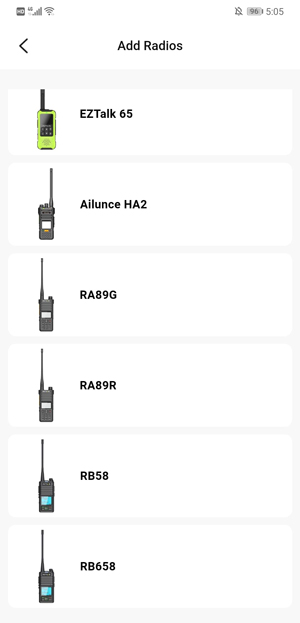
-
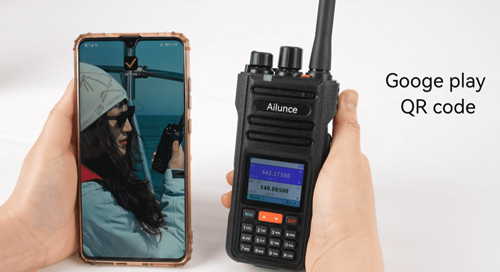
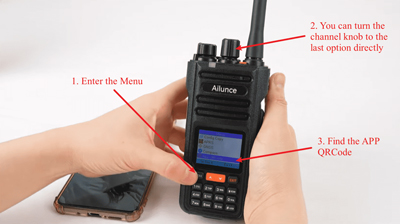
Pull up the menu on your RETEVIS Ailunce HA2, find the QR code, and scan it with your phone’s camera. It’ll take you straight to the download page—no need to remember the app name.
Step 2: Pair Your Phone with the RETEVIS Ailunce HA2
-
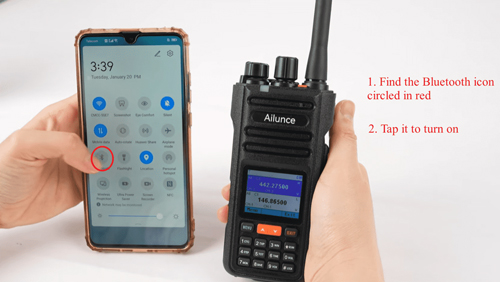
Turn on bluetooth on your phone—this is basic, but easy to forget if you’re in a hurry.

-
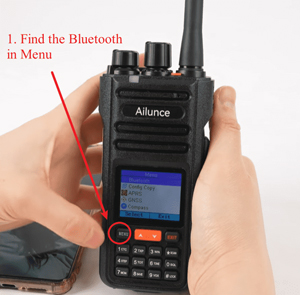
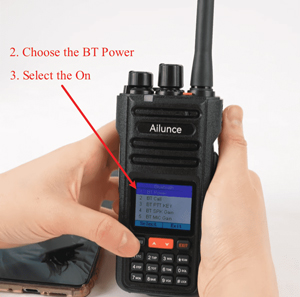
Power on your RETEVIS Ailunce HA2, go to the menu, and turn on bluetooth pairing mode. It’ll show a small bluetooth icon on the screen when it’s ready.

-
Open the RETEVIS bluetooth programming app—it’ll automatically scan for nearby bluetooth devices. Give it 2-3 seconds.
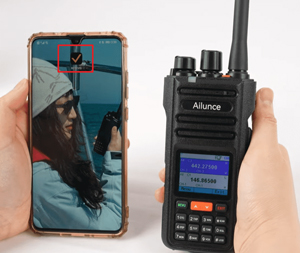
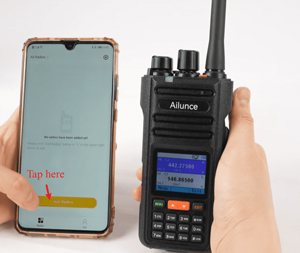
-
Tap RETEVIS Ailunce HA2 that appears at the top of the screen. It’ll pair in a second or two—you’ll see a “Radio connected” confirmation on the screen.
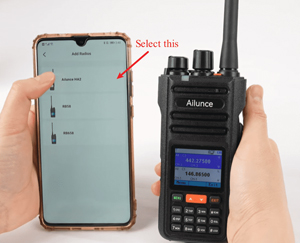
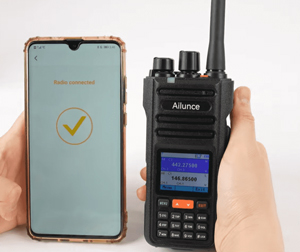
Step 3: Read, Edit, and Write Your Frequencies
-
Once paired, tap “Read Radio Data” in the app. It’ll pull up all the current settings from your RETEVIS Ailunce HA2. The radio will restart once when this is done—don’t worry, that’s normal, not a glitch.
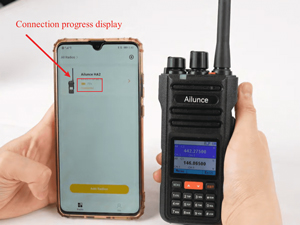
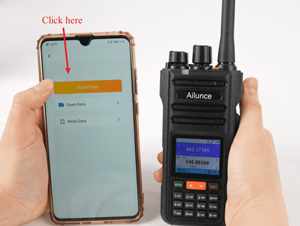
-
Now you can edit whatever you need: change frequencies, name channels so you can keep track of them, or adjust communication parameters. The app’s interface is simple—no confusing menus, just straightforward options.
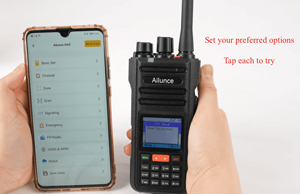
-
When you’re done editing, tap “Write Data” in the top right corner. A progress bar will pop up—don’t close the app or move your phone too far from the radio while this happens.
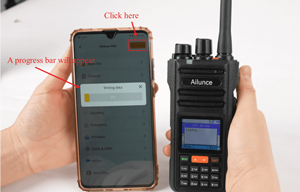
-
The RETEVIS Ailunce HA2 will restart again. When it turns back on, it’ll show “Programming Successful” on the screen. You’re done—your radio is ready to use with the new settings.
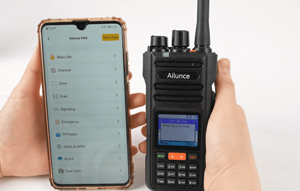
▶️Watch the RETEVIS Ailunce HA2 how to connect to the Bluetooth Programming app, step-by-step guide
Pro Tips (From One Ham to Another)
-
Charge both your phone and RETEVIS Ailunce HA2 before programming. If either dies mid-process, you’ll lose your changes—and that’s frustrating.
-
Keep your phone close to the RETEVIS Ailunce HA2 while programming. Bluetooth works best within a few feet, and moving too far can drop the connection.
-
Backup your settings first. The app lets you save your original settings before making changes—do this. It’s a lifesaver if you accidentally mess up a frequency or parameter.
Common Issues (And How to Fix Them Fast)
I’ve run into these problems myself, so here’s how to fix them without wasting time—no technical jargon, just simple solutions:
-
Phone can’t find the RETEVIS Ailunce HA2: Turn bluetooth off and back on your phone. Restart the radio and the app, then try pairing again. Make sure the radio is in pairing mode (bluetooth icon on screen).
-
Bluetooth doesn’t connect with iPhone during the radio program: Go to your iPhone’s settings, make sure the app has bluetooth permissions. Turn off any other bluetooth devices (headphones, smartwatches) to avoid interference, then re-pair with the RETEVIS Ailunce HA2.
-
Progress bar freezes or fails: Check battery levels first. If both devices are charged, disconnect bluetooth, re-pair, and try the read-write process again. It usually works the second time.
-
Radio doesn’t restart after programming: Power it off, wait 10 seconds, then turn it back on. Your new settings will still be there—this is just a minor glitch sometimes.
Final Thoughts (And a Quick Compliance Reminder)
The bluetooth programming feature on the RETEVIS Ailunce HA2 is a game-changer for anyone who hates the hassle of traditional programming. It’s not about “fancy technology”—it’s about making your life easier, whether you’re programming at home or in the field.
One quick note: Always program your RETEVIS Ailunce HA2 with frequencies you’re legally allowed to use. Follow local radio rules—we all want to keep the airwaves clear and compliant.
Save this guide—you’ll want to come back to it the next time you need to adjust your RETEVIS Ailunce HA2’s settings. It’s the same process I use, and it works every time.
If you have any questions about Ham radios or want to know more about the HA2, feel free to leave a comment or send me a message. I’ll be happy to read your suggestions and answer your questions.