+86 15093323284 hams@ailunce.com




Ailunce HA2 Alias Display Setup: Show Custom Names on Your Radio
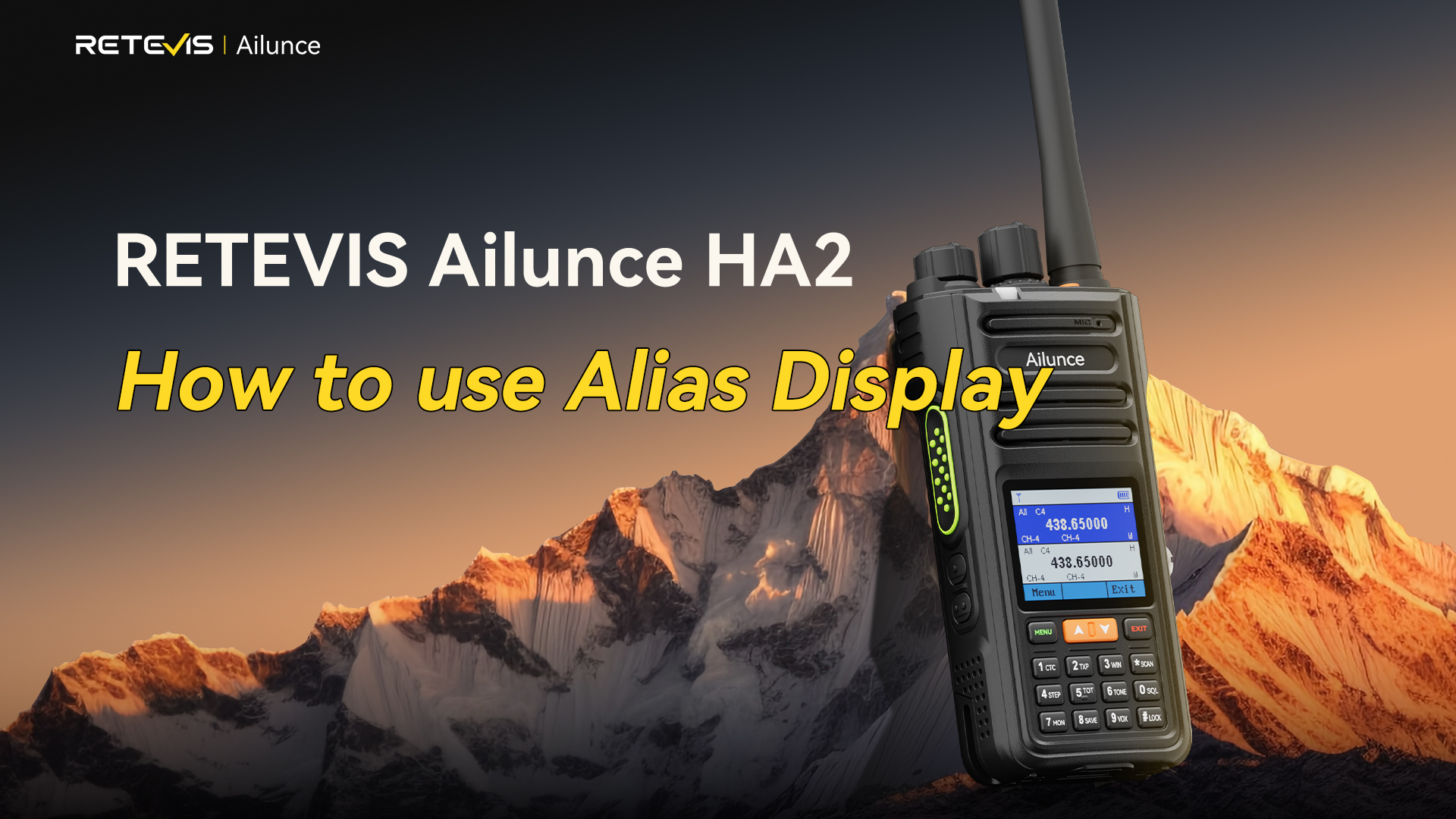
Stop Guessing Who’s Calling: How to Set Up Alias Display on RETEVIS Ailunce HA2
Running multiple radios on your net? You know the drill — a signal comes in, you glance at the screen, and all you get is bare-bones channel info. No quick way to tell who’s on the other end.
The alias display feature on the Ailunce HA2 solves this. You can assign custom names to every radio in your group, and that name shows up on screen the second someone keys up. The radio holds up to 30 entries, enough for most small crews and hobbyist setups.
With the feature turned off, your screen only shows basic channel data when you receive a transmission. No names, no quick context.
Step-by-Step Setup Guide
- Open the main menu
Press the Menu button on your HA2. Scroll to the “Radio” option and select it. Then open the “Alias Display” menu.
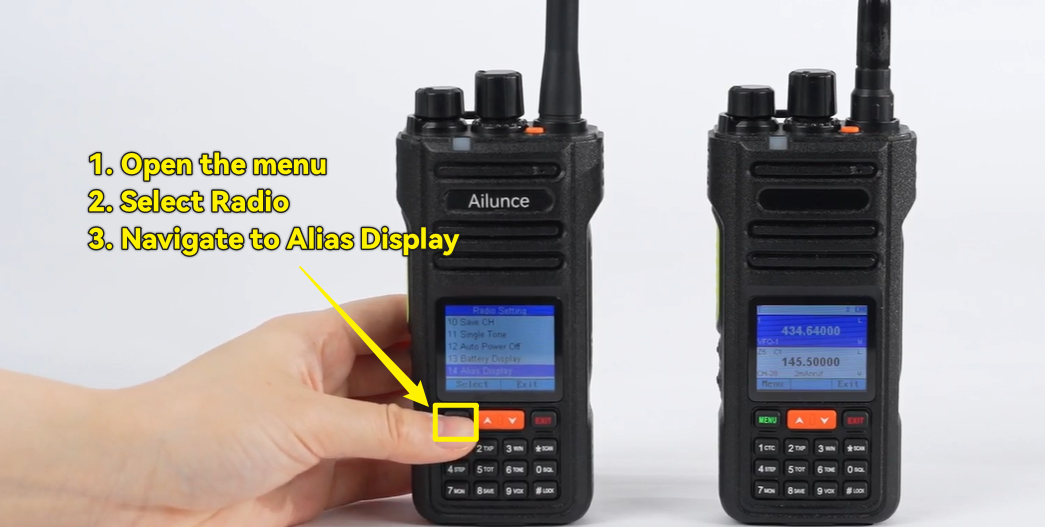
- Open the alias list
Inside the Alias Display menu, select “Alias List”. This is where you store and manage all your custom names.
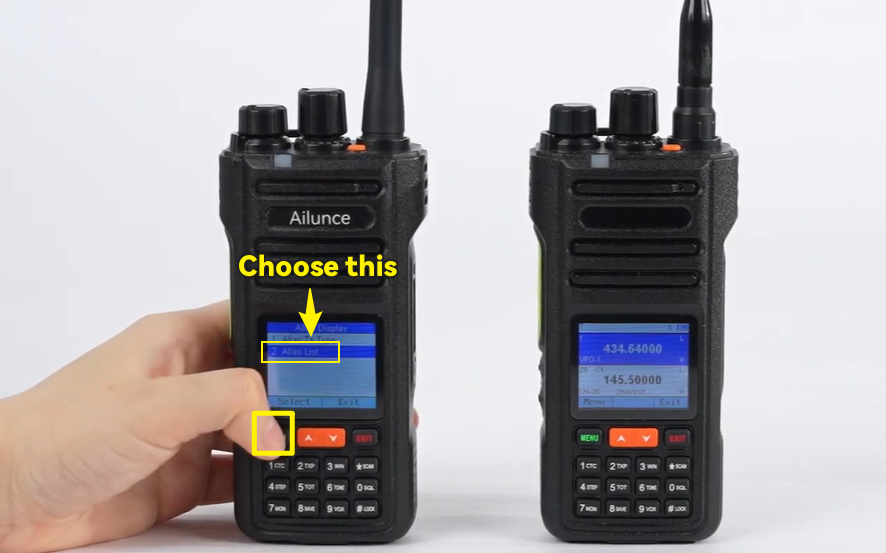
- Add a new entry
Pick an empty slot and select the add option.
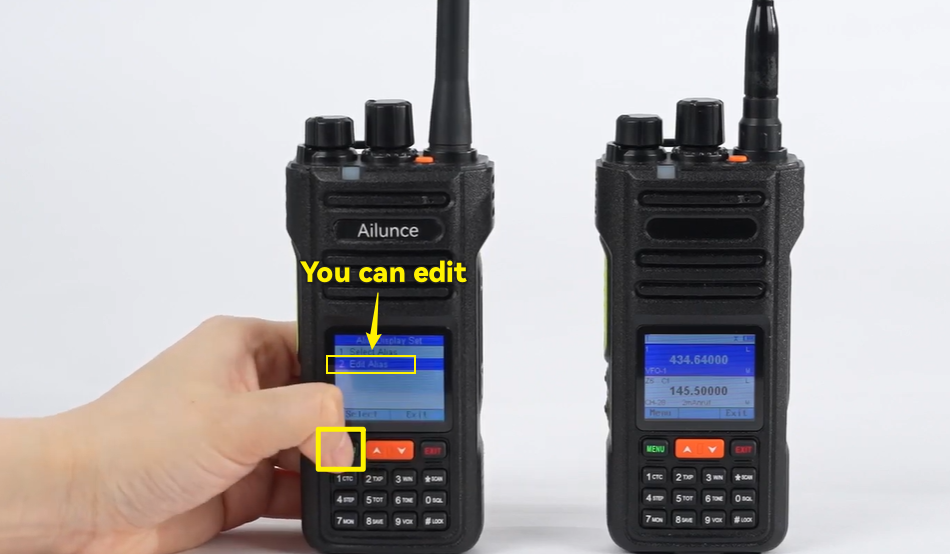
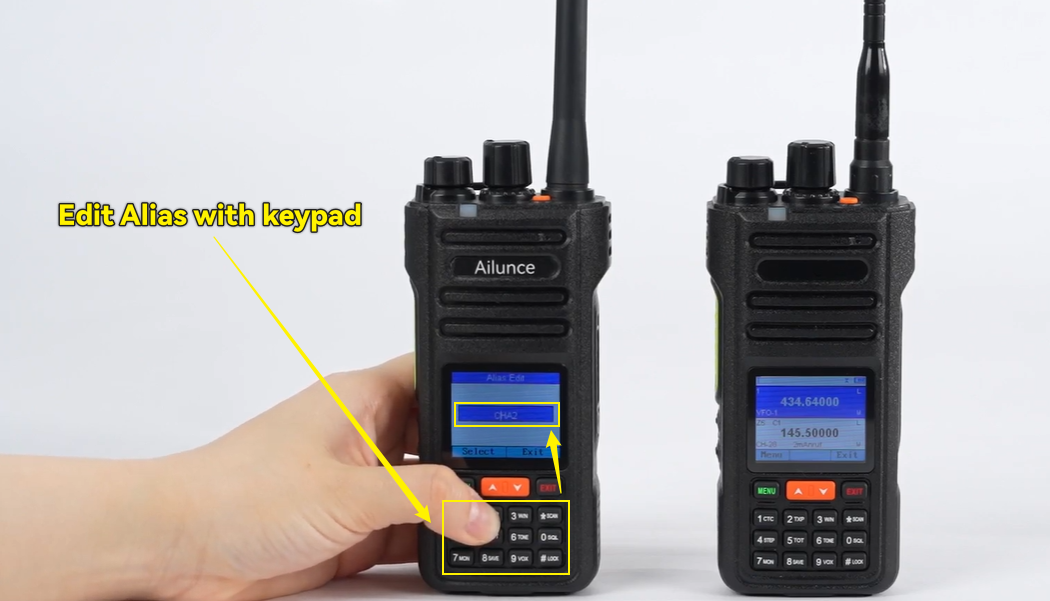
- Type your custom name
Use the number keys to enter characters. Press a key repeatedly to cycle through letters and numbers. For example, press the 2 key multiple times to scroll through A, B, C and 2.
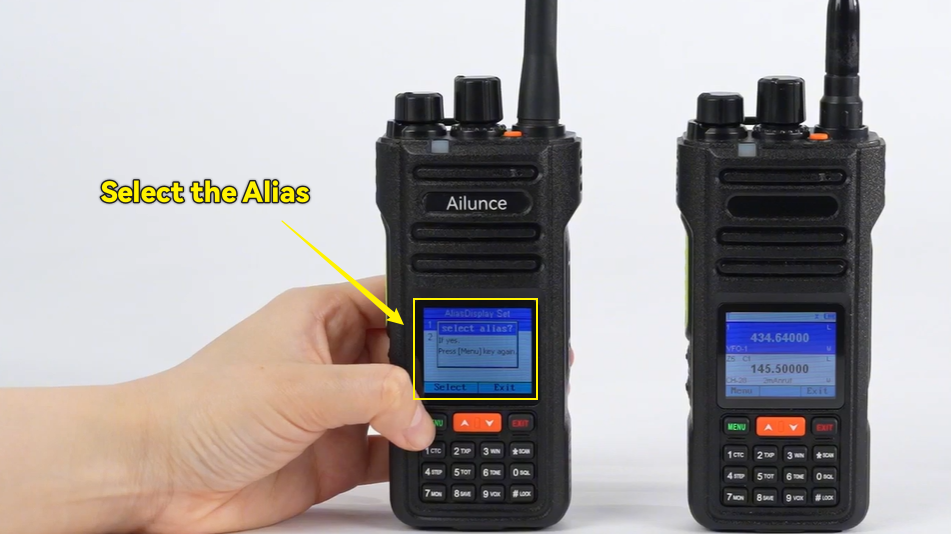
- Save and activate
When you finish typing, press the Menu button to save the entry. Then select it to activate the alias.
- Enable the display function
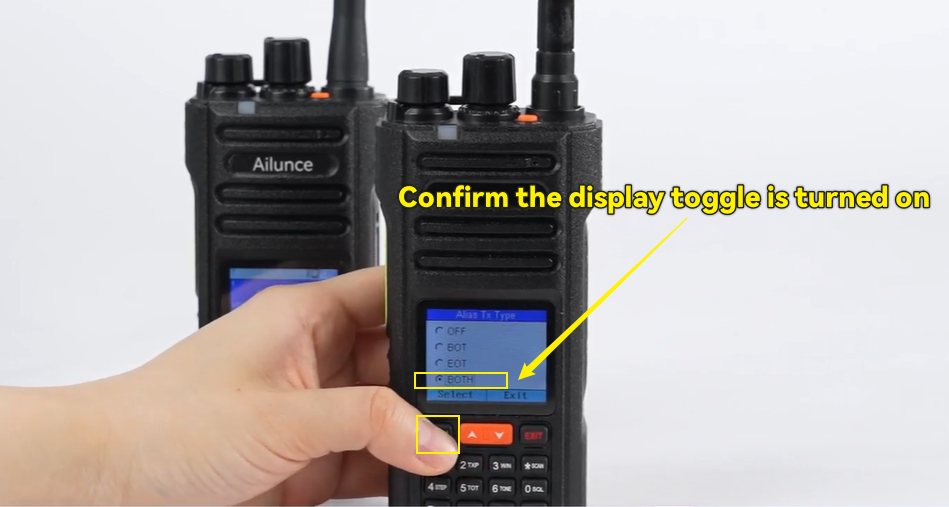
Head back to the main Alias Display menu and confirm the display toggle is turned on. This lets your radio show aliases for incoming signals.
Select the option based on your preference:
BOT shows the name when you start transmitting;
EOT shows it when you finish transmitting'
And BOTH show it at both points.
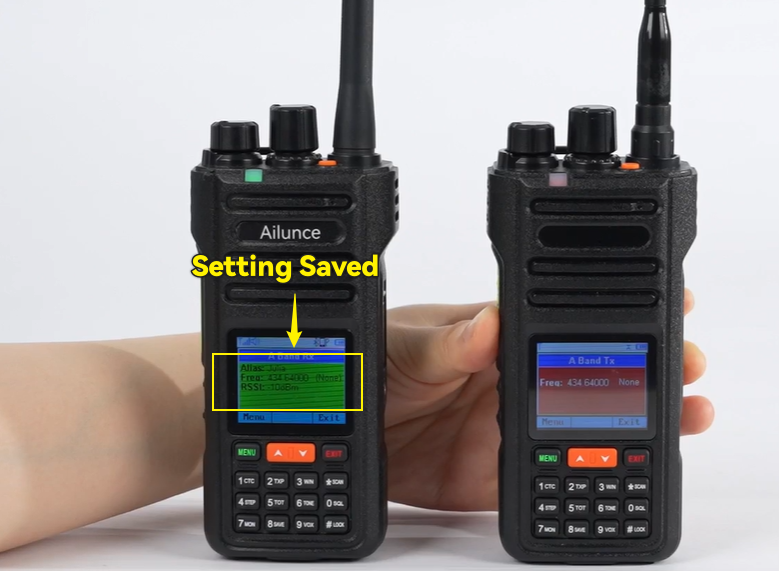
Test the Feature
Once you set aliases on all your radios, run a quick test. Transmit a call from one radio, and the other will show the custom name right on the screen. No more guessing who’s reaching out.
Quick Tips
- Keep names short. Long text gets cut off on the display.
- Stick to consistent naming across your whole group. First names or job roles work best.
- You can edit or delete entries any time through the same Alias List menu.
This is one of those small features that makes daily radio use way smoother, especially for groups with more than a couple of handsets. It takes two minutes to set up, and pays off every time you get a call.
Check back for more straightforward tips and walkthroughs for Ailunce and Retevis two-way radios.